ArgoCD on Kestrel
Accessing the UI
Section titled “Accessing the UI”The ArgoCD UI is at:
https://kestrel.arbutus.cloud/argocdArgoCD is the single pane of glass for every GitOps-managed resource on Kestrel. If you have completed Your first deployment, the Application you registered there is visible here.
Logging in
Section titled “Logging in”ArgoCD on Kestrel authenticates through Keycloak — the same Alliance LDAP-backed identity used by kubelogin. Your ArgoCD group membership matches your kubectl groups.
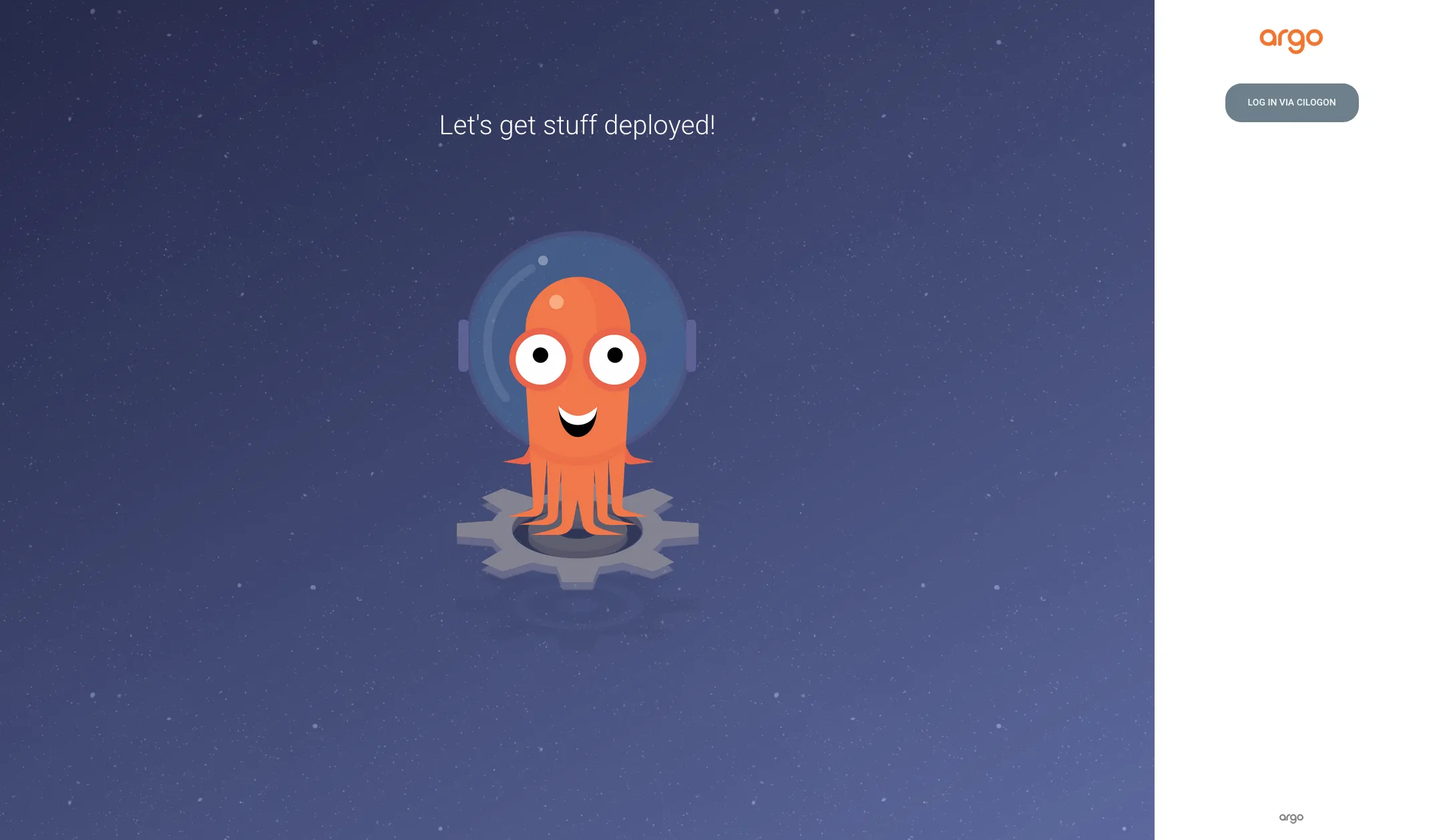
Click Log in via Keycloak, authenticate with your Alliance CCDB credentials, and you are in. Once authenticated, ArgoCD maps your identity to a per-tenant AppProject (see What you can see below).
What you can see
Section titled “What you can see”ArgoCD uses per-tenant AppProjects managed by capsule-argo-addon (ArgoTranslator). When you log in, you see:
- Your own Applications — every Application that belongs to your tenant’s AppProject.
- Sync history — the full sync history for each of your Applications (who synced, when, what changed).
- Resource tree — the live Kubernetes resources (Deployments, Pods, Services, Ingresses) that each Application manages, including their health status.
What you cannot see
Section titled “What you cannot see”- Other tenants’ Applications. AppProject scoping means you only see what belongs to your tenant. You cannot browse, sync, or inspect another tenant’s workloads.
- The addon AppProject. Platform-managed addons (monitoring agents, Capsule controllers, etc.) run in a separate AppProject that is not visible to tenants.
- AppProject creation or modification. Tenants cannot create or edit AppProjects directly —
capsule-argo-addonmanages the mapping from Capsule Tenant to ArgoCD AppProject automatically.
Finding sync history
Section titled “Finding sync history”To view sync history for a specific Application:
- Click the Application card in the ArgoCD dashboard.
- Click the History and rollback tab (clock icon) in the top bar of the Application detail view.
- Each entry shows the sync timestamp, the Git revision that was deployed, and whether the sync succeeded or failed.
Sync history is the first place to check when debugging a deployment that worked yesterday but is broken today — the diff between the last two syncs shows exactly what changed.
Reading sync status
Section titled “Reading sync status”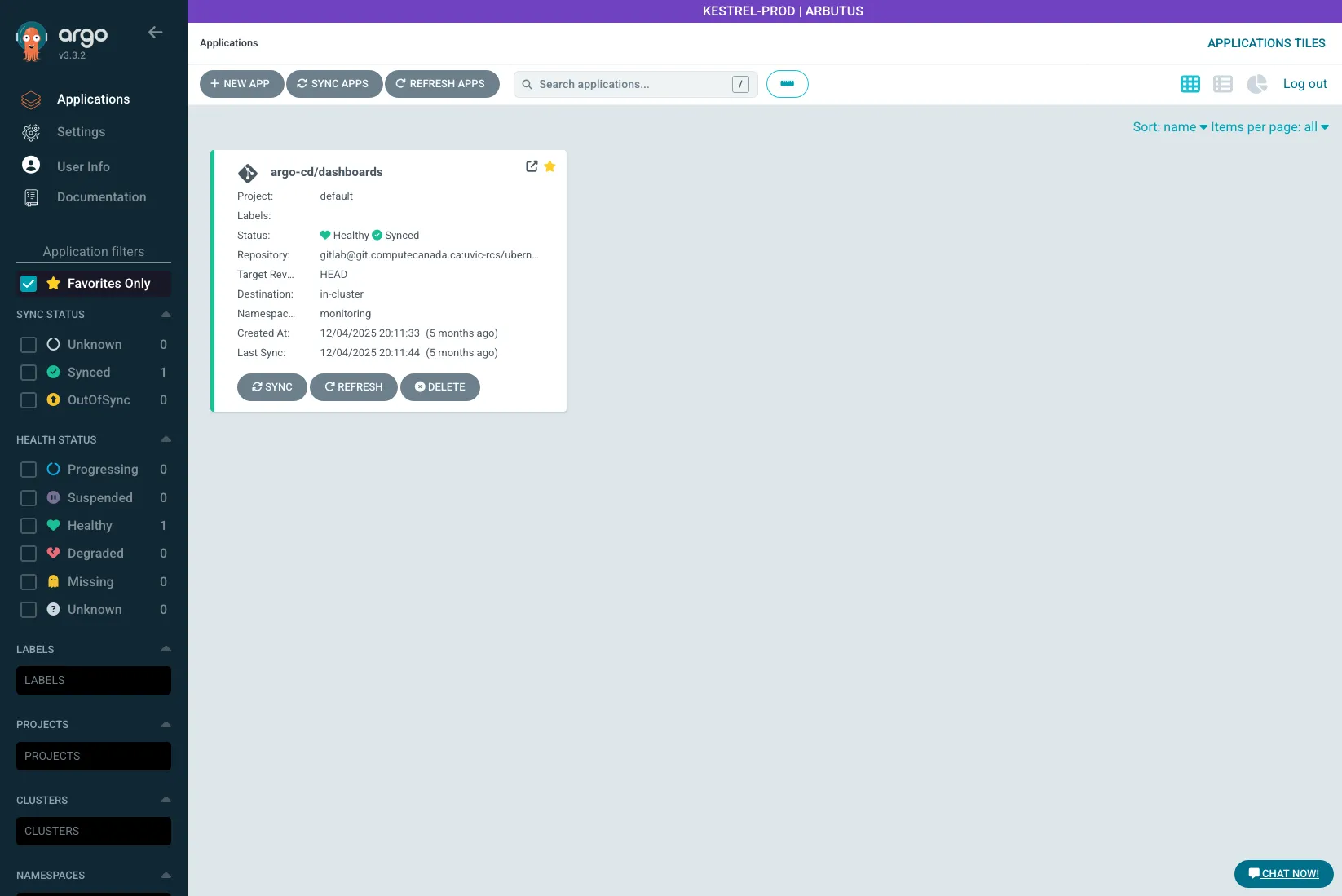
Every Application in ArgoCD has two independent status indicators:
| Status | Meaning |
|---|---|
| Synced | The live cluster state matches the desired state in Git. Nothing to do. |
| OutOfSync | The live cluster state differs from Git. ArgoCD will reconcile on the next sync (automatic or manual, depending on your sync policy). |
| Healthy | All managed resources are running and passing their health checks. |
| Degraded | One or more resources failed a health check — a Pod is crash-looping, a Deployment has zero ready replicas, or similar. |
A common first-deployment state is Synced + Degraded: ArgoCD applied your manifests (synced), but the Pod itself is unhealthy (degraded). This usually means a YAML issue that Kyverno rejected at admission — click through to the Application’s resource tree to see the specific error.
OutOfSync after a git push is expected and temporary. ArgoCD polls your Git repository on a 3-minute default interval. If you want an immediate sync, click Sync in the UI.
Next steps
Section titled “Next steps”Once you are comfortable navigating the ArgoCD UI, the next pages in the running-workloads section cover the pieces you will use alongside ArgoCD:
- Your repo, your workloads — the repo structure and sync policy defaults for your tenant repo.
- Workload recipes — long-running services, batch jobs, and dev pods that deploy through ArgoCD.
- Priority classes — picking the right
priorityClassNamefor your workloads.